Features

Nasaq in detail

The parts of Nasaq are connected: what you change in setup shows in the timetable, and the published timetable is what cover and duties work from.

1 · Building the timetable

A clash-free timetable, with a clear reason for anything not met

You set how long generation may run. Nasaq works in the background and shows the best timetable it found, with a list of the rules it could not meet and why.
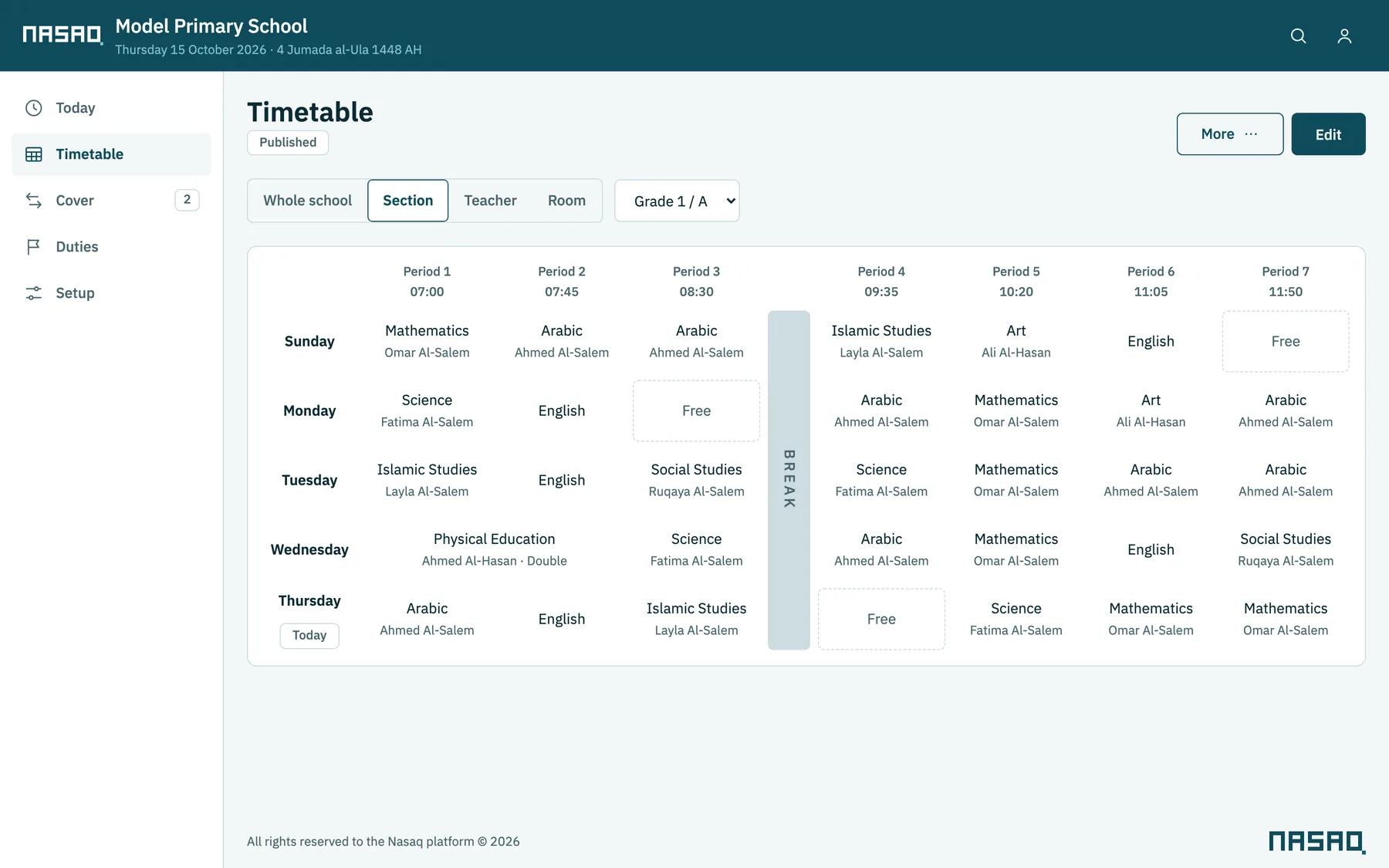
  • No clashes for teachers, classes or rooms
  • Teachers' unavailable times, and limits on a teacher's lessons per day and in a row
  • Double lessons, never split by a break unless the school allows it
  • The room a subject needs, such as a lab or a computer room
  • Classes split into as many groups as you need
  • A subject's lessons spread across the week, fewer free periods in a teacher's day, and a balanced load from day to day
  • Lock chosen lessons, and regenerate part of the timetable without touching the rest
The timetable of Grade 1 A: five days and seven periods, with the break after period 3

2 · Master timetable and versions

Every teacher on one page

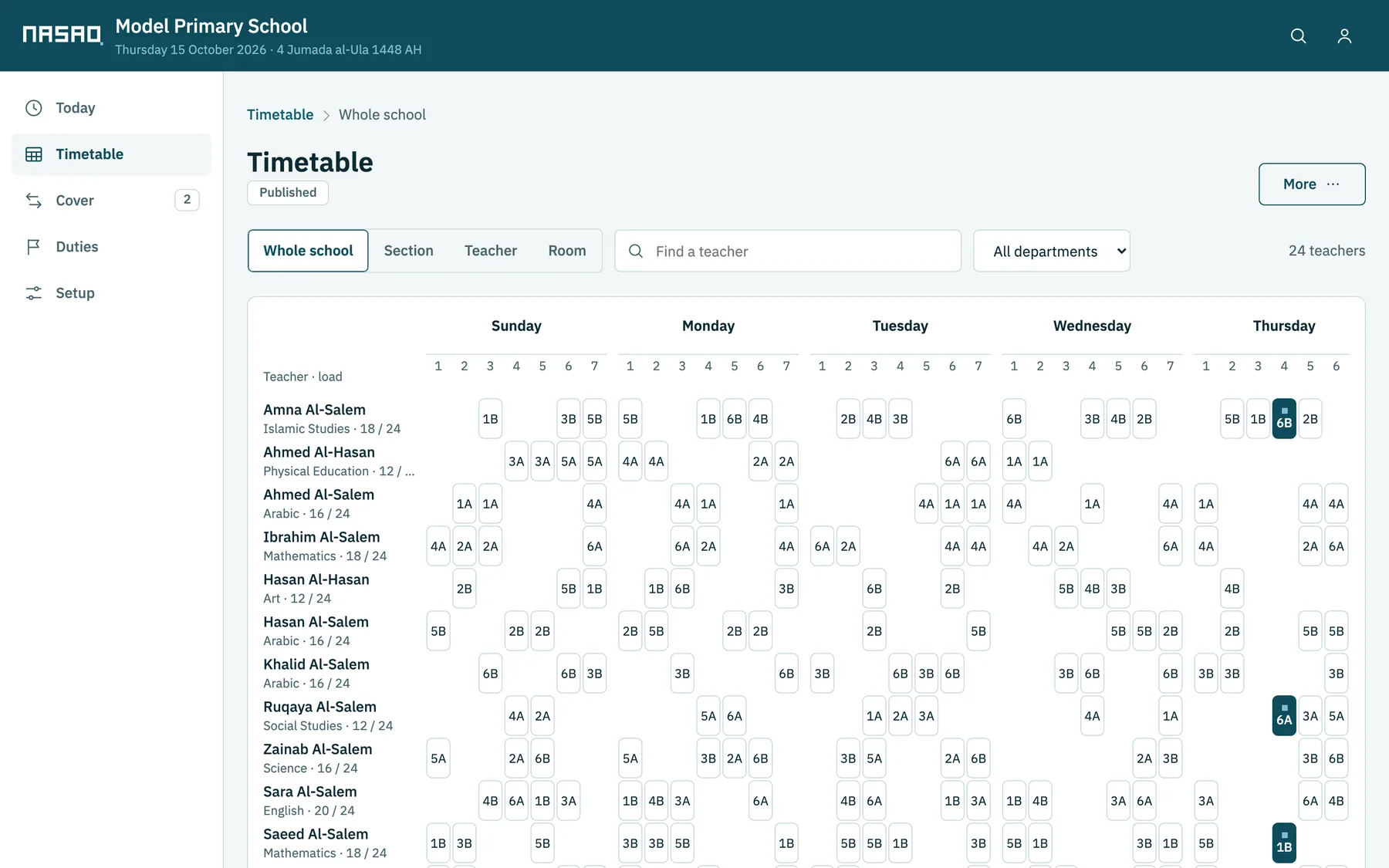
The master timetable shows teachers in rows and days and periods in columns, with each teacher's load, a search, and a filter by department.
  • Drafts and versions of the timetable, and a comparison of two versions
  • Move, swap and lock lessons, with every edit checked before it is saved
  • A published timetable is edited in a working copy, and teachers see nothing until you publish
  • A timetable with a clash cannot be published
The master timetable: 24 teachers with their lessons across the week and their loads

3 · Absences and cover

Teachers absent today? Cover is ready in minutes

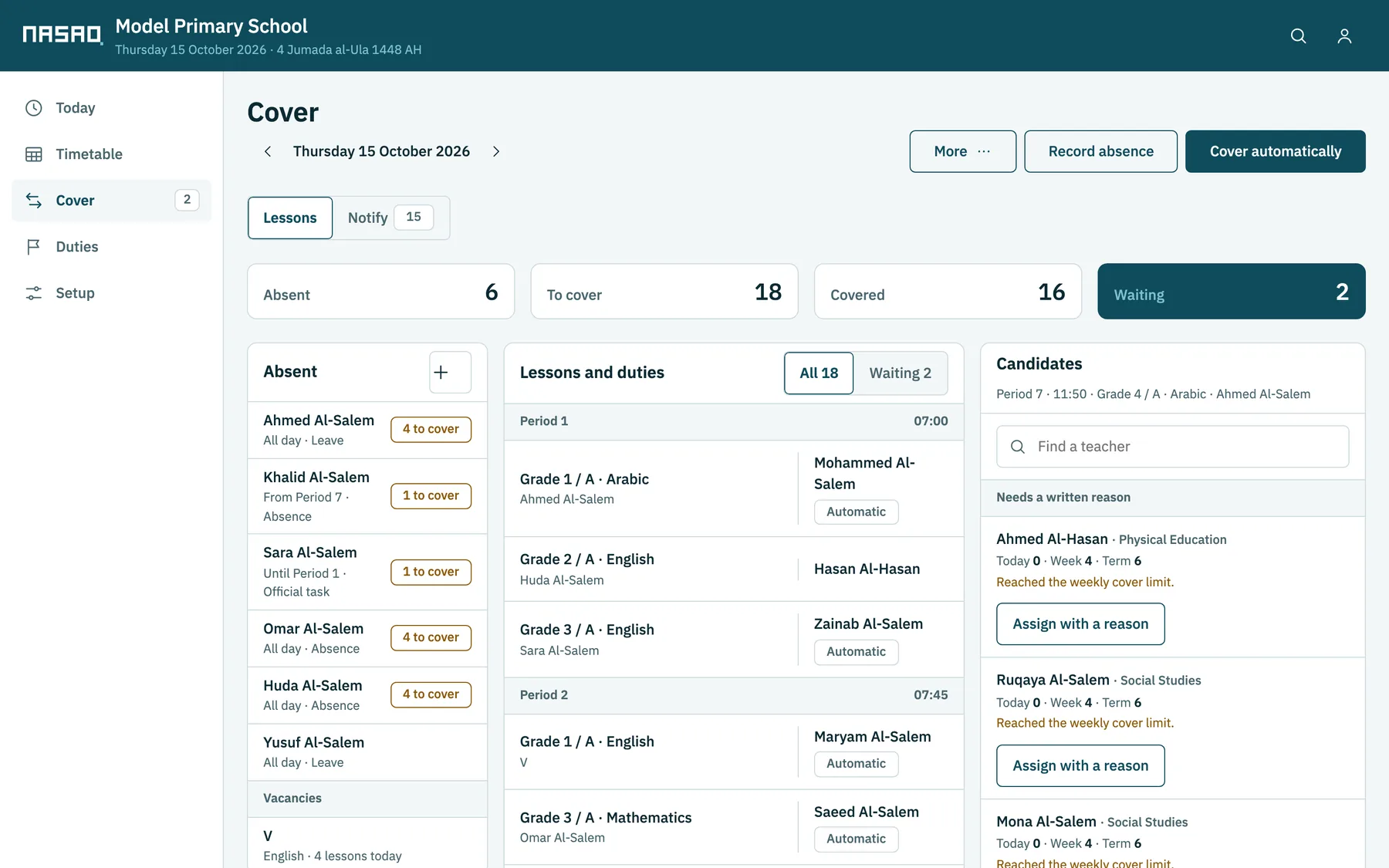
Record the absence and you see the lessons that need cover and the teachers free in each one, ordered by how much cover each has already done.
  • A full or partial day's absence, an official duty, or leave
  • Automatic cover that stays within each teacher's daily and weekly limits
  • Cover lessons shared fairly among teachers, counted over the day, the week and the term
  • Lesson swaps between teachers
  • A fixed substitute for long leave
  • Vacancy lessons: the lessons of a teacher not yet appointed, shared out like any others
The cover screen: absent teachers, lessons and duties by period, and the free teachers with their cover counts

4 · Telling teachers

Each teacher gets their assignment on their phone

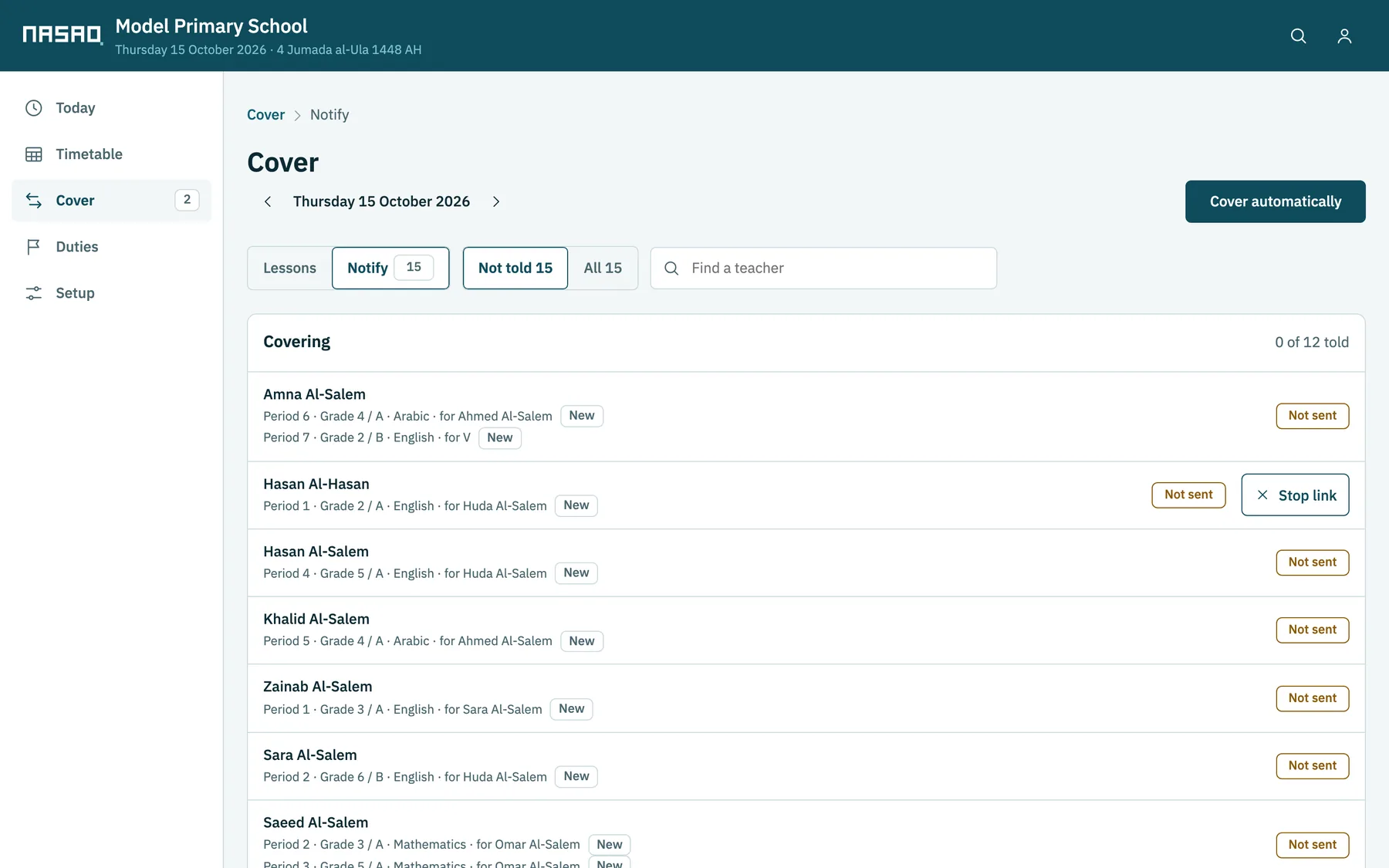
Next to each teacher with an assignment is a button that opens WhatsApp or Messages on your phone, with a short ready message and their private link. The details stay in Nasaq and are not written into the message.
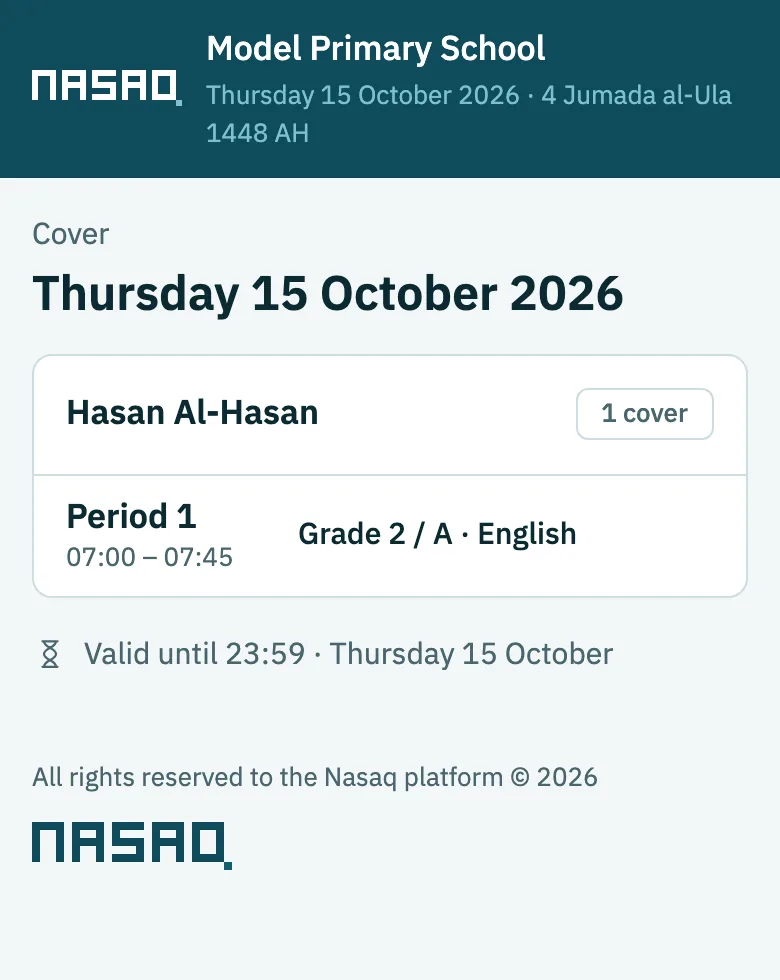
  • The link shows the teacher their cover for that day, or their timetable and duties, and nothing else
  • A cover link expires at the end of the day, and you can cancel any link at any time
  • You see "sent", then "opened", next to each teacher
  • No outside messaging service or subscription is needed
The notify screen: teachers with assignments today and the sending status of each
What a teacher sees when they open the link on their phone

5 · Duties

Duties organised the way your school runs them

Morning duty, assembly, break, dismissal, buses, or any type the school adds. Each duty takes its time from the day's bell, with the number of teachers it needs.
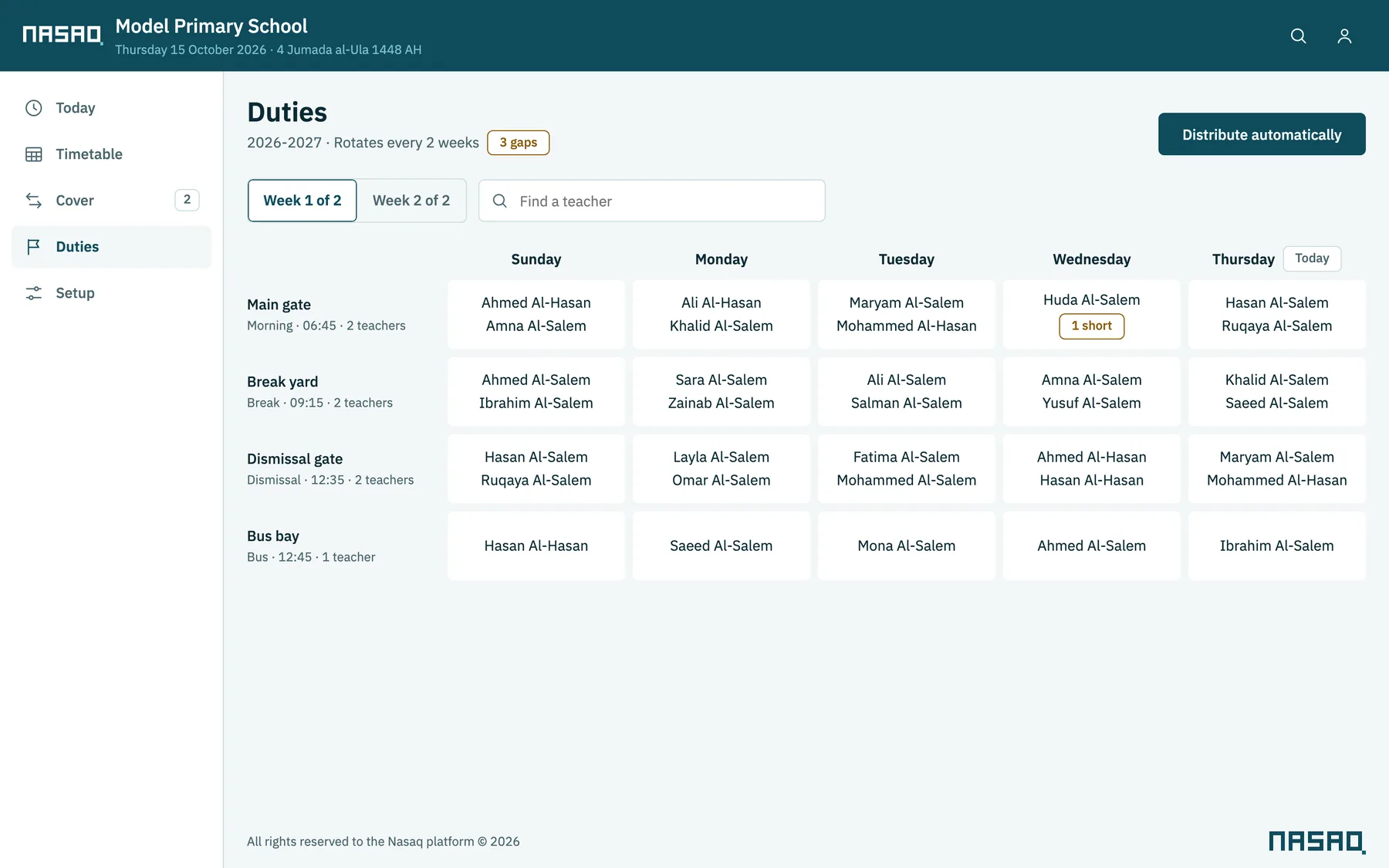
  • Rotation over one week or more
  • Duties shared fairly, with rules that give teachers a break in their school day, such as keeping the morning duty teacher free in period 1
  • An absent teacher's duty is covered from the same cover screen
The duty rota for week 1 of 2, with one point short of a teacher

6 · The Today screen

The school's day on one screen

The first thing the leadership team sees: the current period, who is absent, lessons waiting for cover, today's duties, and today's bell as it really is, even on days with a different bell.
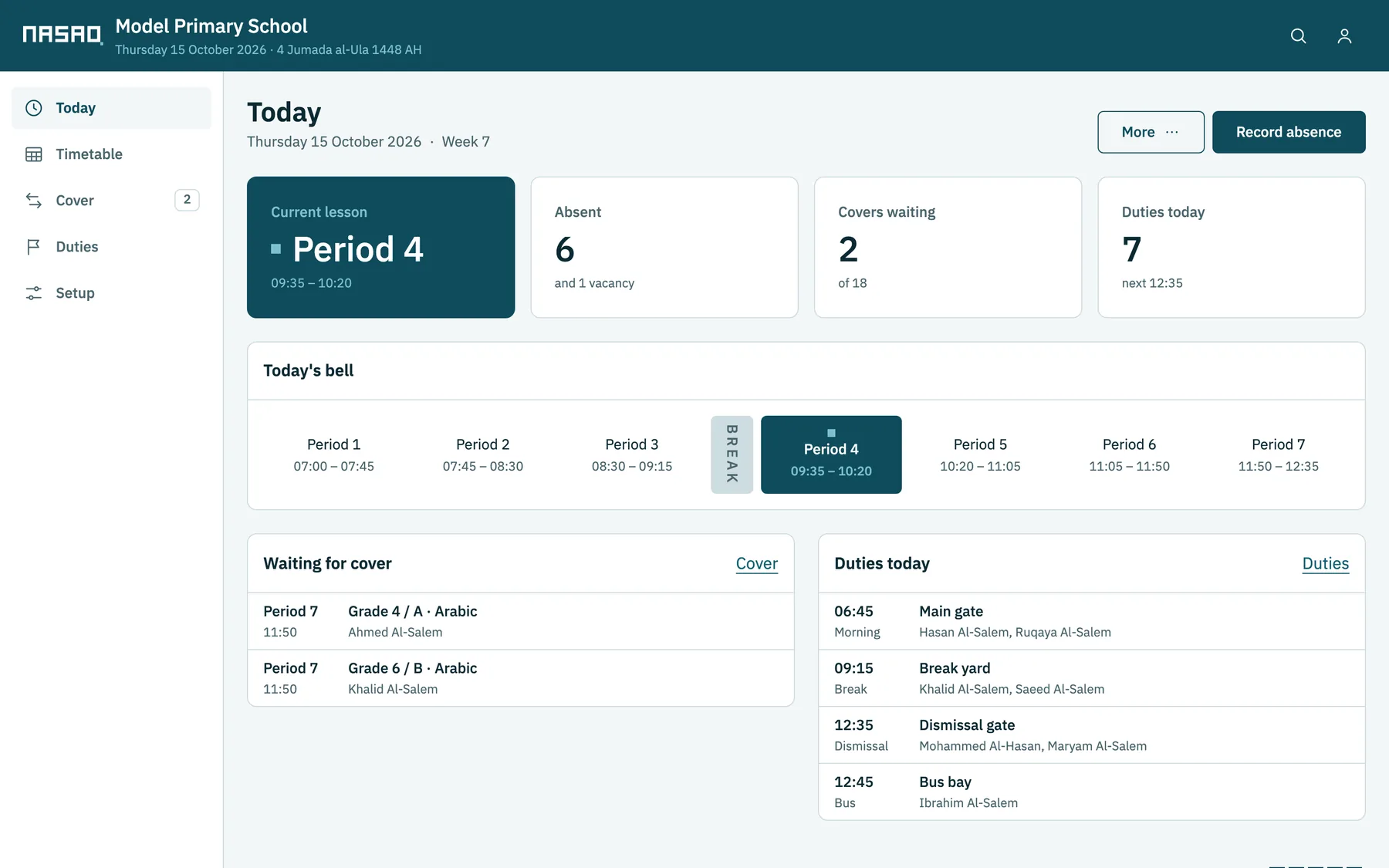
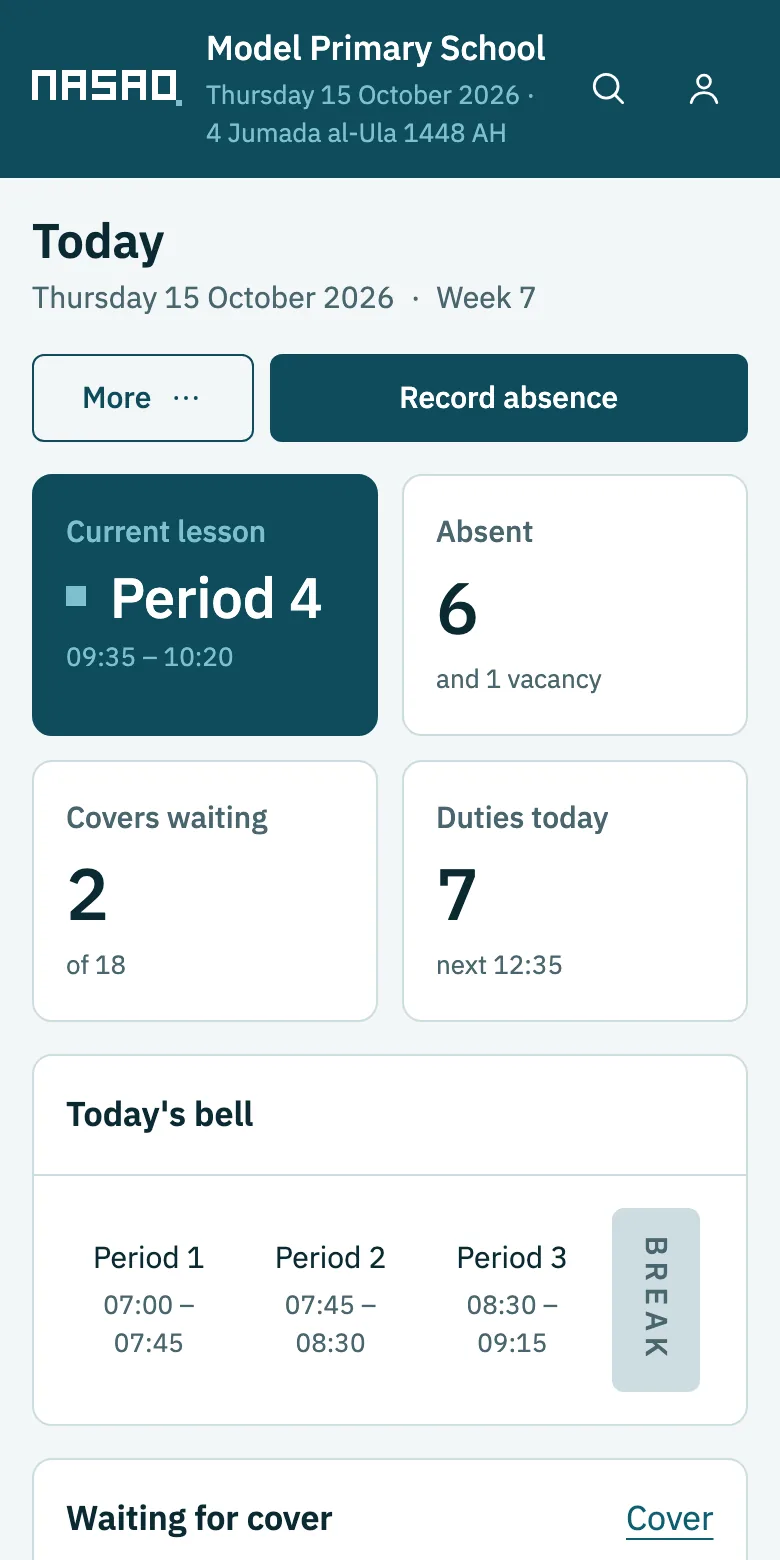
  • Works on a phone as well as on a computer
  • One button to record an absence
The Today screen on a computer
The Today screen on a phone

7 · Setup

Setting up the school in eight steps

Each step is saved when you finish it, so you can stop and carry on later from where you left off.
  1. Country: working days, holidays, time zone and language
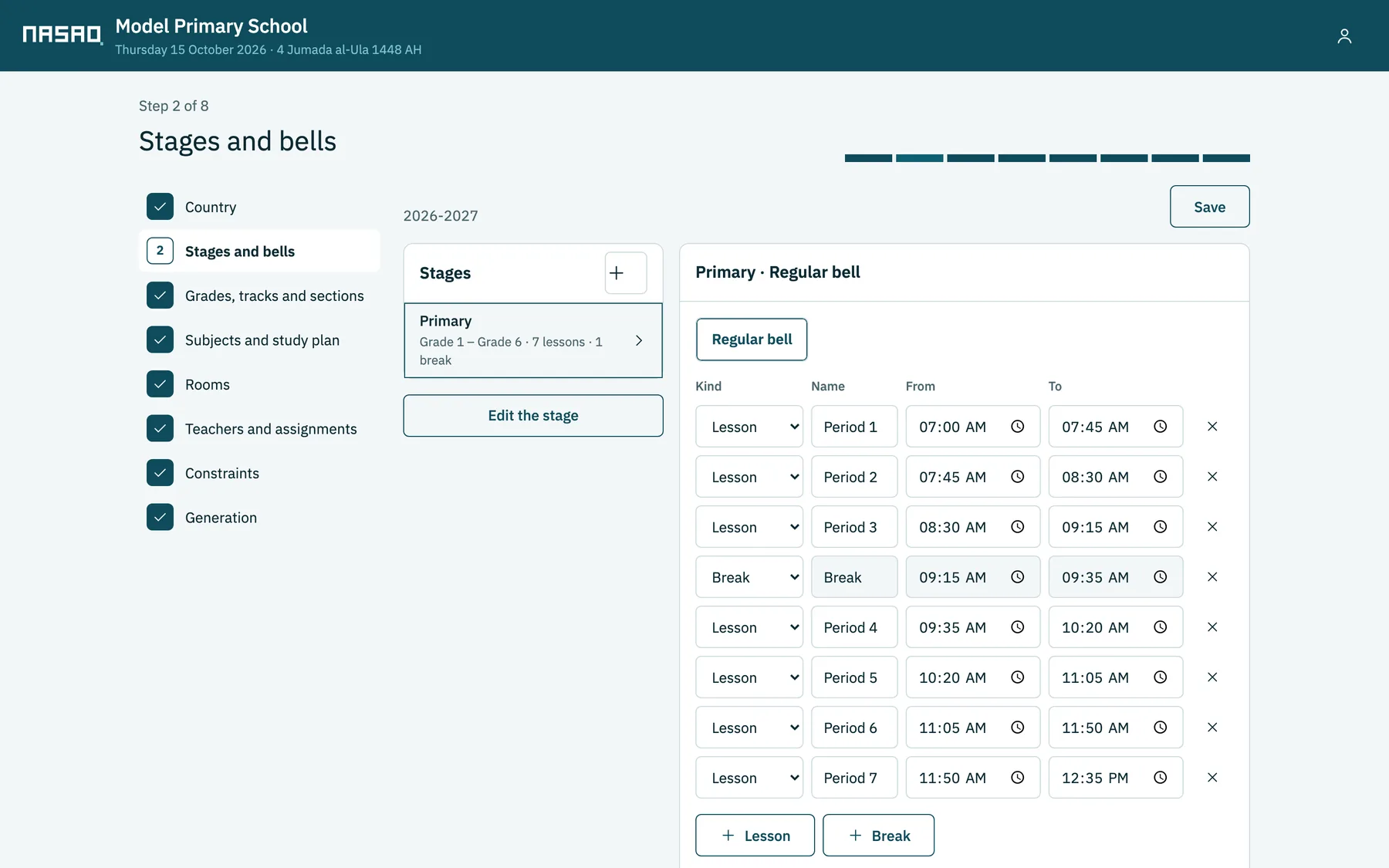
  2. Stages and bells, each stage with its own bell and breaks
  3. Grades, tracks and classes
  4. Subjects and the study plan
  5. Rooms and room types
  6. Teachers and assignments, by hand or from a file
  7. Rules
  8. Generating the timetable
Step 2 of setup: the primary stage's bell with its periods and break

8 · Subject loads

The study plan in one table

Pick a stage to see its grades, its subjects, and the weekly lessons of each subject in each grade, as set by the ministry or the school.
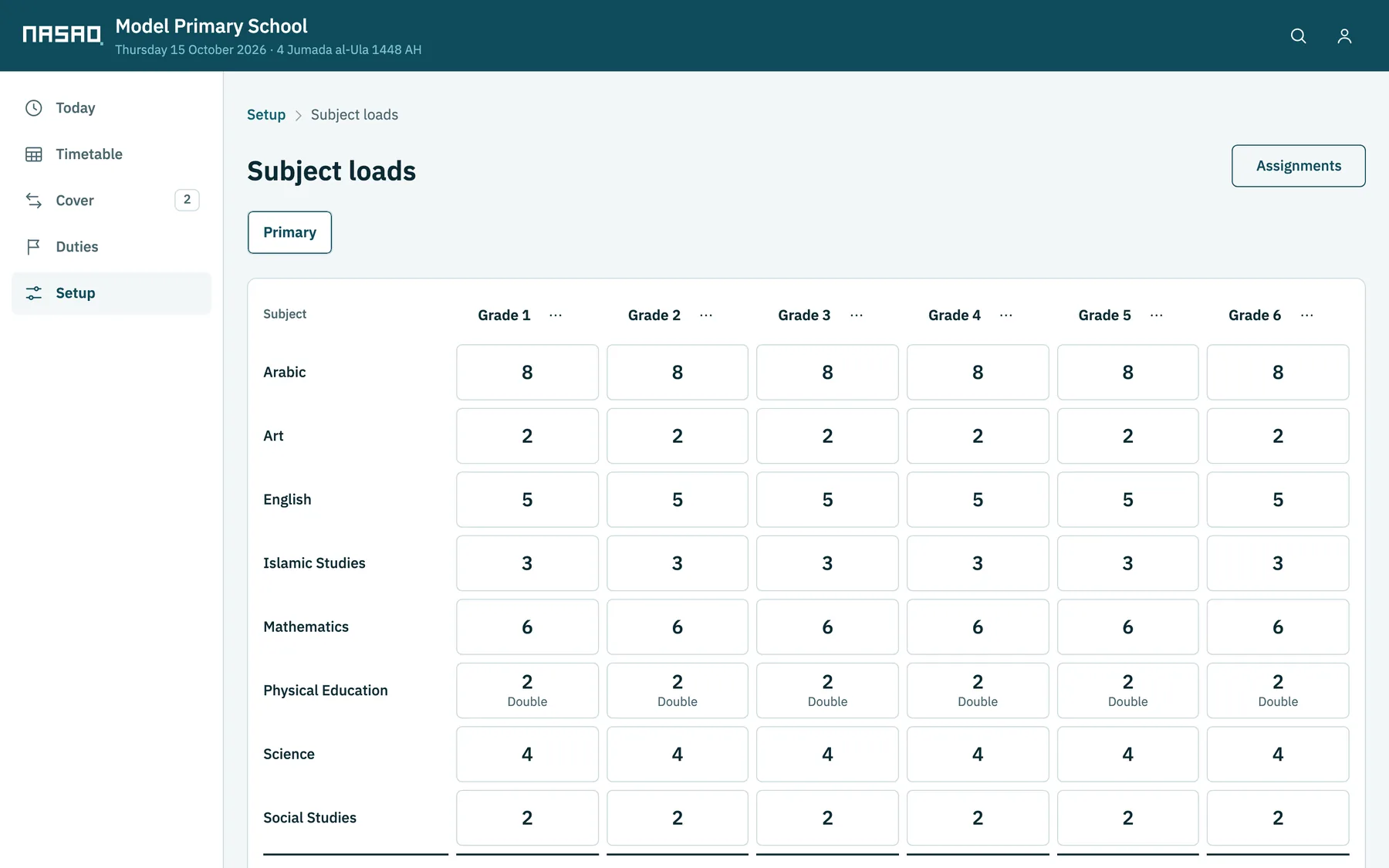
  • Double lessons and the number of groups in each cell
  • Each grade's total against the lessons available in its stage's bell
  • Copy one grade's loads to another grade or to several
  • See the effect of any change on assignments before you save it
The subject loads screen for the primary stage: eight subjects across six grades

9 · Import

Start from the files you already have

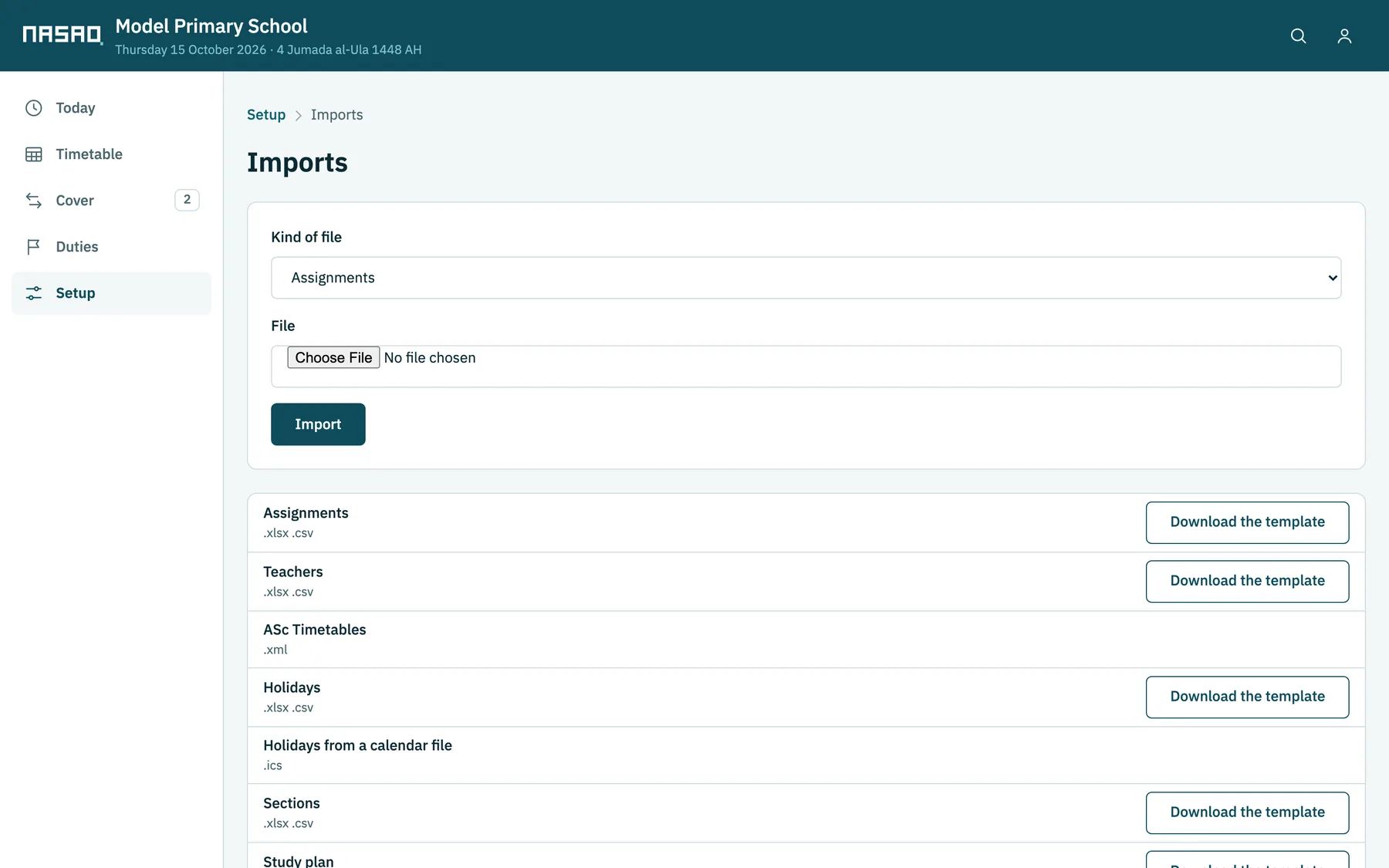
Import from aSc Timetables or from ready Excel and CSV templates, and import holidays from an ICS calendar file.
  • Teachers, classes, subjects, the study plan, assignments and holidays
  • You review each file row by row before it is saved
  • No existing record is changed without your approval
The import screen: accepted file types and Excel templates to download

10 · Printing and apps

More tools in Nasaq

Printing and export

Teacher, class, room and master timetables in several layouts, on A4, A3, Letter and Legal, fitted to the page automatically. Export to PDF and Excel.

Exam timetable

The exam timetable for each exam period and stage, with invigilation shared among teachers.

Teacher portal

Teachers sign in with their own account to see their timetable, duties, cover lessons and load, without changing anything.

Mac and Windows app

Runs on one computer without internet after a single activation, and its data stays on that computer.

Mobile app

An app for teachers showing their timetable, duties, cover lessons and load.

Courses and option blocks

For schools with a course system or a baccalaureate: parallel option blocks, lessons shared between classes, and a timetable that repeats every two weeks.

11 · More details

Details that matter to a school

Arabic and English

The whole interface in both languages, with the page direction following the language. Each user picks their language, and Arabic or Latin digits.

Calendar and holidays

Hijri, Gregorian or both. Public holidays ready for seven countries, or imported from an ICS or Excel file, or entered by hand.

Alternative bells

A bell for Ramadan, for exams or for emergencies, applied over a range of dates, with a different number of periods and breaks.

The school's identity

The school's logo and name, and a choice of five colour schemes.

Users and permissions

Account owner, timetable officer, administration and teacher, each with their own permissions.

Change history

Who changed what, and when. Records are archived rather than deleted, so none of the school's history is lost.

The school's own terms

Stage, grade, track, specialism, class: the school names its levels the way it already does.

Setup and timetable check

A check that finds mistakes and gaps in setup and the timetable before they show up on a school day.

In a phone's browser

Every screen works in a phone's browser, with a navigation bar at the bottom of the screen.

Try Nasaq yourself

A demo school for each country with complete sample data, reset every night.